Chapter 1.6
Add the Hub to Your Phone
Updated 30 Aug 2026 · Grant
What this does
You can put the Hub on your phone's home screen so it opens with one tap, like a normal app — full screen, with no address bar in the way. There is nothing to download and nothing to pay for; it is the same website, just easier to get to.
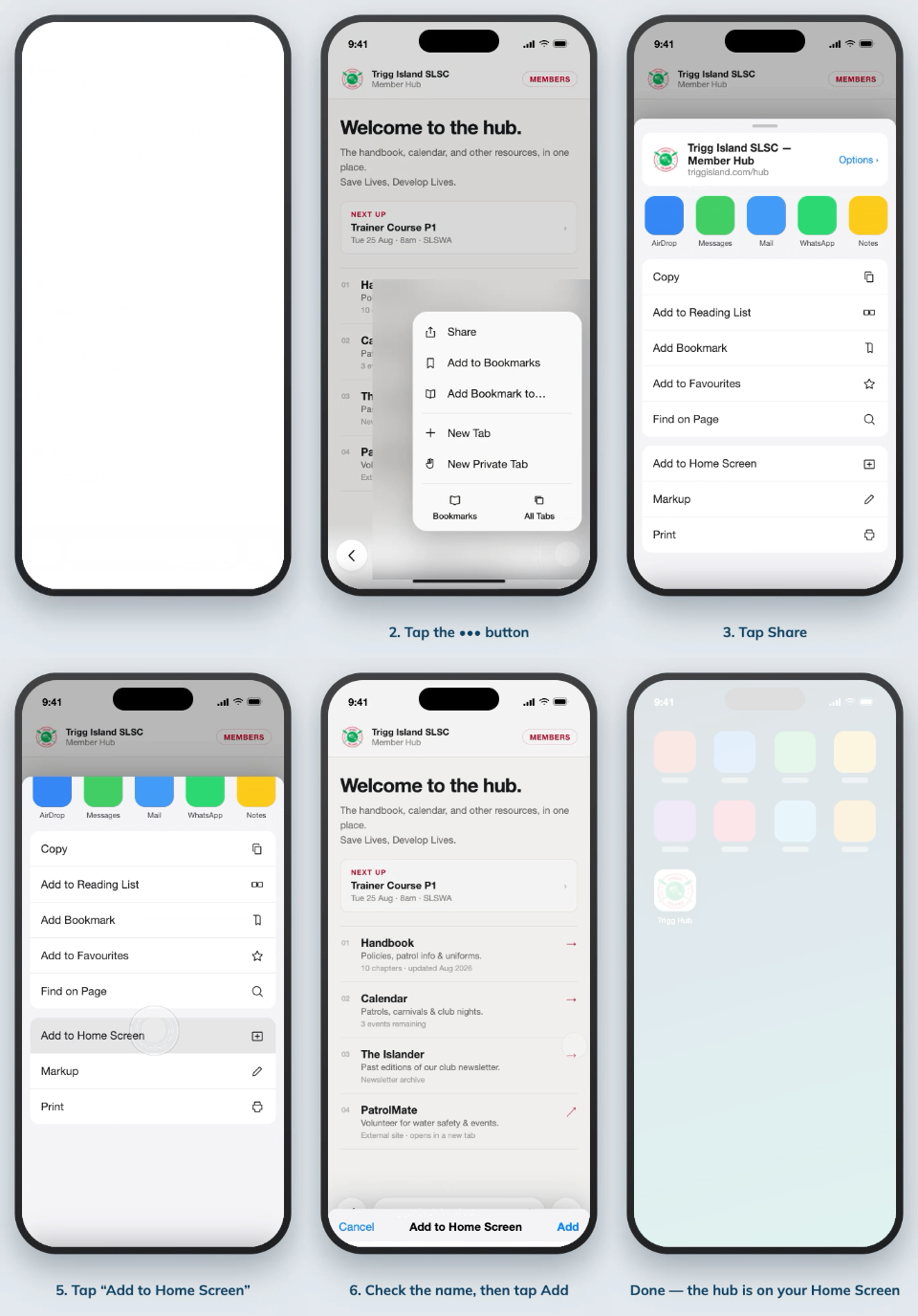
Follow the section for your phone. The pictures below show what to look for — your screen may not look exactly the same, as phones differ, but the buttons are named the same.
iPhone and iPad
You must use Safari for this. It will not work in Chrome on an iPhone.
1. Tap the Share button
It is in the bar at the bottom of the screen and looks like a square with an arrow pointing up out of it.
2. Choose Add to Home Screen
A grey list slides up. Scroll down it until you find Add to Home Screen.
3. Tap Add
You can change the name first if you like. Then tap Add in the top corner.
Android
These steps are for Chrome, which most Android phones use.
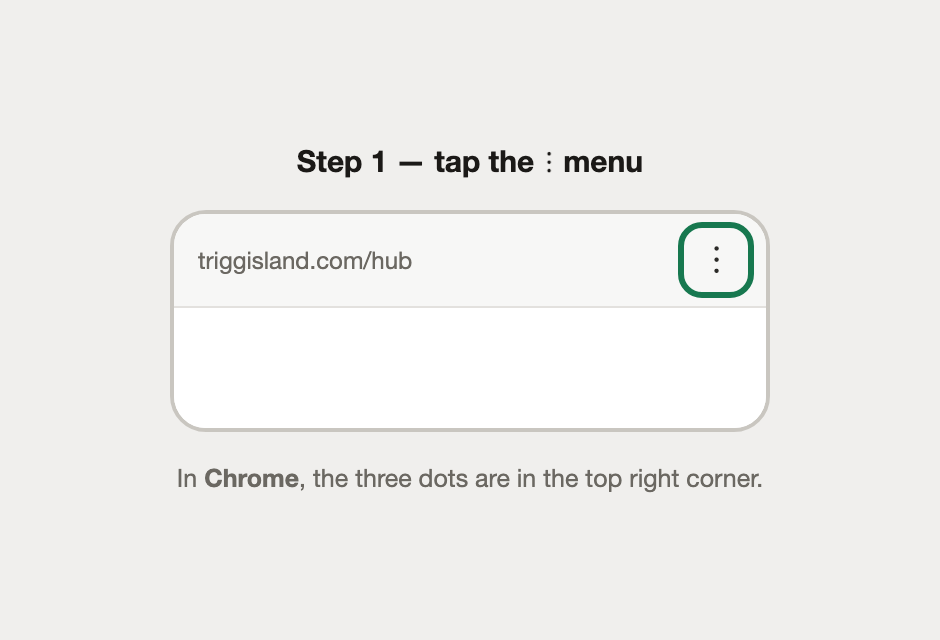
1. Tap the three-dot menu
It sits in the top right corner, next to the web address.
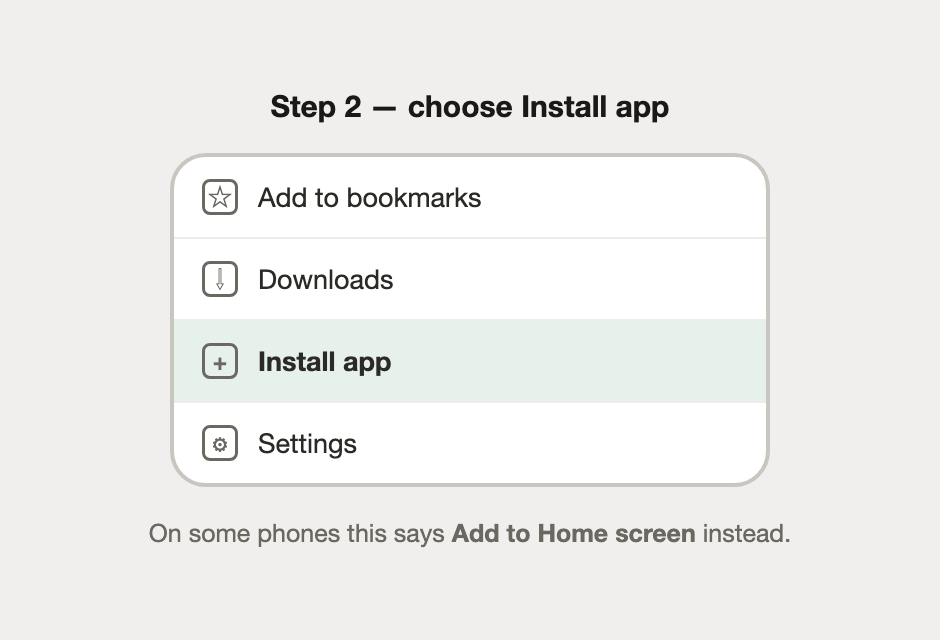
2. Choose Install app
Some phones word this as Add to Home screen instead. Either is the right one.
3. Tap Install
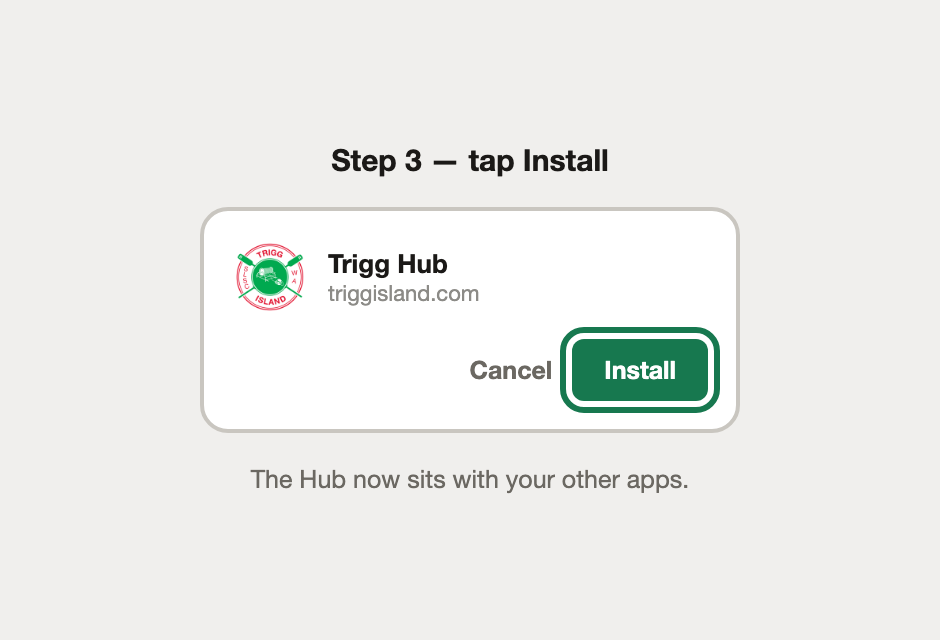
You are done
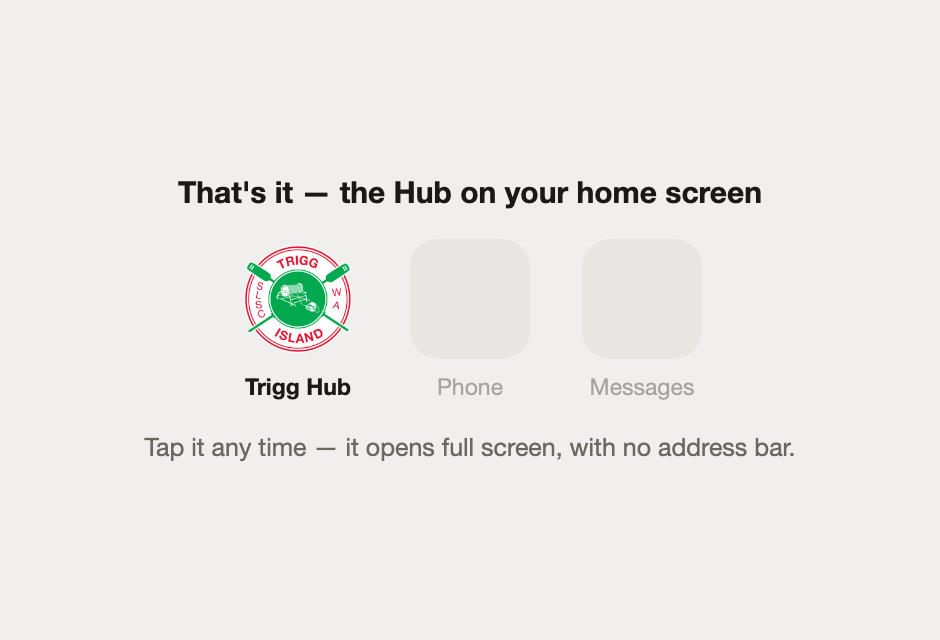
The Trigg Hub icon now sits with your other apps. Tap it any time to open the handbook and calendar.
Tip
The Hub may offer to do this for you — if a green bar appears at the bottom of the screen inviting you to add it, you can simply tap that instead of following the steps above.
Please note
The Hub still needs an internet connection to load. Adding it to your home screen makes it quicker to reach, but it does not store the handbook on your phone for use offline.